Verify Acceleration
- fwaccel stats -s
- fwaccel stats
- fwaccel stat
Over three decades of Information Technology experience, specializing in High Performance Networks, Security Architecture, E-Commerce Engineering, Data Center Design, Implementation and Support
Verify Acceleration
/var/opt/CPsuite-R81.10/fw/conf/trac_client_1.ttm
make a backup copy of trac_client_1.ttm
search for :automatic_mep_topology
To disable http2:
ckp_regedit -a SOFTWARE\\CheckPoint\\FW1 IGNORE_ALPN_EXTENSION 1
cpstop;cpstart
To enable http2 again:
ckp_regedit -a SOFTWARE\\CheckPoint\\FW1 IGNORE_ALPN_EXTENSION 0
cpstop;cpstart
No production impact, low risk.
set interface eth1-04 rx-ringsize 1024 or (2048)set interface eth1-04 tx-ringsize 1024 or (2048)save config
Interface speed duplex settings are critical to ensure there are not RX/TX packet drops
ethtool -S eth1-03
fw ctl pstat
expertmode > cpinf -d -Z
Hardware diagnostics https://support.checkpoint.com/results/sk/sk97251
[Expert@myfw01]#
hcp -r all --include-wts yes
Test
name
Status
============================================================
APPI
DB status....................................[PASSED]
ARP
Cache Limit...................................[PASSED]
ARP
neighbour table overflow......................[PASSED]
Blocker
handlers check............................[PASSED]
Bond
- Traffic distribution.......................[SKIPPED]
CPview
Diagnostic.................................[INFO]
Check
Point Processes.............................[PASSED]
Cluster...........................................[PASSED]
Connectivity
to UC................................[PASSED]
Core
Dumps........................................[PASSED]
Cpu
spikes........................................[INFO]
Custom
Applications RegEx.........................[ERROR]
Debug
flags - FW..................................[PASSED]
Debug
flags - fwaccel.............................[PASSED]
Disk
Space........................................[PASSED]
Dmesg
analysis....................................[PASSED]
Dynamic
Balancing.................................[PASSED]
Dynamic
Objects Database..........................[PASSED]
FW
Configuration File Sanity......................[PASSED]
FW
Connection balancing...........................[SKIPPED]
FW
and PPACK communication CPAQ failures..........[SKIPPED]
FW
instances drops................................[SKIPPED]
FW
queues utilization.............................[SKIPPED]
File
Descriptors..................................[PASSED]
Fragmentation
rate................................[SKIPPED]
Gaia
DB...........................................[PASSED]
HTTPD
SSL CONF FILE...............................[PASSED]
HTTPS
inspection..................................[PASSED]
Hardware
Compatibility............................[PASSED]
Hardware
validation...............................[PASSED]
Heavy
connections.................................[PASSED]
IO
wait...........................................[SKIPPED]
IPv4
forwarding...................................[PASSED]
Identity
Awareness - Sharing mechanism error......[PASSED]
Identity
Awareness - tables limit.................[PASSED]
Identity
Awareness - tables mismatch..............[PASSED]
Ifconfig
validation...............................[PASSED]
Interface
Errors..................................[PASSED]
Kernel
crash......................................[PASSED]
Local
Logging.....................................[PASSED]
MTU...............................................[PASSED]
Memory
Usage......................................[PASSED]
Multiqueue........................................[SKIPPED]
Network
statistics................................[PASSED]
Penalty
box statistics............................[PASSED]
SIC...............................................[PASSED]
SIM
Configuration File Sanity.....................[PASSED]
SSD
Health........................................[PASSED]
SYSLOG
timestamp..................................[PASSED]
SecureXL
drops....................................[SKIPPED]
SecureXL
status...................................[PASSED]
Soft
lockup.......................................[PASSED]
Software
Version..................................[PASSED]
Static
affinity...................................[PASSED]
System
stressed...................................[PASSED]
Template
efficiency...............................[PASSED]
Traffic
distribution..............................[PASSED]
Transceivers
Support..............................[PASSED]
URL
filtering.....................................[PASSED]
User
space processes affinity check...............[PASSED]
User
space processes utilization..................[PASSED]
VPN
test..........................................[PASSED]
Zombie
processes..................................[PASSED]
Generating
Topology...............................[Done]
Generating
Story..................................[Done]
Generating
Charts.................................[Done]
To view full report on this machine, run "hcp
--show-last-full"
To view report as html file. Copy
/var/log/hcp/last/hcp_report_myfw_08_06_23_14_20.tar.gz to your desktop,
extract the tar content and open the index.html via your web browser
[Expert@myfw:0]#
set interface eth1-04
rx-ringsize 1024 (2048)
set interface eth1-04 tx-ringsize 1024 or (2048)
save config
Typical Gaia Interface configuration
set interface eth1-04 comments "Outside Internet"
set interface eth1-04 link-speed 10G/full
set interface eth1-04 state on
set interface eth1-04 auto-negotiation on
set interface eth1-04 rx-ringsize 1024
set interface eth1-04 ipv4-address 127..21.183.11 mask-length 25
Adjust rx/tx values of you are seeing drops with netstat -I
set interface eth1-01 rx-ringsize 1024
set interface eth1-01 tx-ringsize 1024
set interface eth1-04 rx-ringsize 2048
set interface eth1-04 tx-ringsize 2048
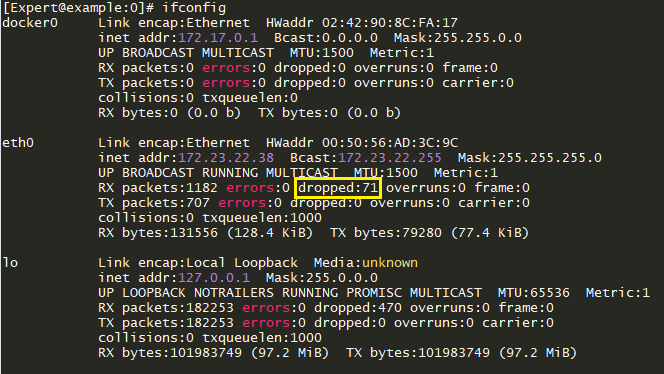
Output of the "ifconfig" command on a Security Gateway R80.30 and higher with Gaia kernel 3.10 shows that the number "RX packets - dropped" on interfaces increases.
Example:
netstat -ni" command on a Security Gateway R80.30 and higher with Gaia kernel 3.10 shows that the number "RX-DRP packets" on interfaces increases.Example:
There were no RX packet drops while in the same environment, the same Security Gateway was running R80.20 or lower versions with Gaia kernel 2.6.18.
Based on the expected Linux OS behavior, various commands in Gaia OS versions from R80.30 to R81 with kernel 3.10 may show RX packet drops on interfaces under these conditions:
To view the capability and the current values of your interface, you’ll need “ethtool”. Simply do the following command :
ethtool -g eth0This will output something like this :
Ring parameters for eth0:
Pre-set maximums:
RX: 4096
RX Mini: 0
RX Jumbo: 0
TX: 4096
Current hardware settings:
RX: 256
RX Mini: 0
RX Jumbo: 0
TX: 256 We can see here that both RX and TX values are set to 256 but the interface have the capability of 4096 bytes.
To increase the buffers, do the following :
ethtool -G eth0 rx 4096 tx 4096
How to Print Static-Routes netstat -nr | grep -v D
netstat -rn |grep eth1 | awk -F' ' ' {print $1, $2, $3}' | sort >routes.txt
netstat -rn |grep eth1 | awk -F' ' ' {print $1, $2, $3}' | sort | wc -l
cpstat -f licensing os
ip -s route show cache
cpstat -f policy fw
cpstat -f IKE vpn
ip neighbor
netstat -rvm
fw ctl multk stat
arp -an
Blade Precedents -
SSL Inspection
URL Filtering
Application Control
IPS Geo Protect
Content Awareness
Anti Bot
Anti Virus
SSL Light - DNS name
SNI
Certificate
cpconfig
10
1
Acceleration
fwaccel stats -s
Affinity
fw ctl affinity -l -r -v -a
sim affinity -s
Kernel
multi-kernel statistics (multik)
fw ctl multik stat
fw ctl multik get_mode
fw ctl multik dynamic_dispatching get_mode
CoreXL
Monitoring CoreXL load distribution
fw ctl affinity -l -a -v
fw ctl affinity -l -r
cat /opt/CPsuite-R80.20/fw1/boot/modules/fwkern.conf
R80.20 secureXL and firewall act separelty
To check if the SND is slowing down the traffic:
Identify the processing core to which the interfaces are directing traffic using fw ctl affinity -l -r.
Under heavy traffic conditions, run the top command on the CoreXL gateway and check the values for the different cores under the 'idle' column.
Troubleshooting problem
investigation
RCA - Root cause Analysis
NETWORK /Subnet Mask
/16 /24 .0 -- 1 Subnets -- 244 hosts
/17 /25 .128 -- 2 Subnets -- 126 Hosts/Subnet
/18 /26 .192 -- 4 Subnets -- 62 Hosts/Subnet
/19 /27 .224 -- 8 Subnets -- 30 Hosts/Subnet
/20 /28 .240 -- 16 Subnets -- 14 Hosts/Subnet
/21 /29 .248 -- 32 Subnets -- 6 Hosts/Subnet
/22 /30 .252 -- 64 Subnets -- 2 Hosts/Subnet
/23 /31 .254
/32 .255 /32 -- 1 hosts
192.168.1.0/28 -- 16 Subnets -- 14 Hosts/Subnet
.0 - network
.1 - Usable host
.14 - Usable host
.15 - Broadcast
/29 has 6 usable IP
192.168.1.0/29 -- 32 Subnets -- 6 Hosts/Subnet
.0 - network
.1 - Usable host
.6 - Usable host
.7 - Broadcast
/30 has 2 usable IP
eg 192.168.1.0/30 (255.255.255.252) /30 -- 64 Subnets -- 2 Hosts/Subnet
.0 - network
.1 - Usable host
.2 - Usable host
.3 - Broadcast
eg 192.168.1.4/30
.4 - network
.5 - Usable host
.6 - Usable host
.7 - Broadcast
Checks
[Expert@myfw01:0]#
1 pep show user all
2 pep show user all | wc -l
3 pdp show
4 pdp show connections
5 pdp connections
6 pdp connections pep
7 pep show
8 pep show user
9 pep show user query
10 pep show user query usr myid01
[Expert@myfwe-int01:0]# installed_jumbo_take
R77.30 Jumbo Hotfix Accumulator take_117 is installed, see sk106162.
[Expert@myfwe-int01:0]#
[Expert@myfwe-int01:0]# cpinfo -y all
VPN Site to Site Troubleshooting
VPN Users fw tab -t userc_key -s
IKE Process (2 Phases)
Phase 1 - Main Mode (6 Packets)
Phase 2 - Quick Mode (3 Packets)
4. Turn VPN Debug On - enter the command "vpn debug on; vpn debug ikeon" or "vpn debug trunc".
The $FWDIR/log/ike.elg file contains information once debugging is enabled.
Checkpoint has a tool IKEView.exe - it parse information of ike.elg
5. Another tool is "vpn debug on mom" - it writes IKE captured data into file ikemonitor.snoop
This file is open with wireshark or ethereal.
Phase I
It does this in 5 stages:
In IkeView under the IP address of the peer, open the Main Mode Packet 1 - expand :
> "P1 Main Mode ==>" for outgoing or "P1 Main Mode <==" for incoming
> MM Packet 1
> Security Association
> prop1 PROTO_ISAKMP
> tran1 KEY_IKE
You should then be able see the proposed Encryption Algorithm, Key Length, Hash Algorithm, Authentication Method, DH Group, and SA renegotiation params (life type - usually secs and duration).
UNDERSTAND THE 5 PACKETS
- If your encryption fails in Main Mode
Packet 1, then you need to check your VPN communities.
Packet 2 ( MM Packet 2 in the trace ) is from the responder to agree on one encryption and hash algorithm
Packets 3 and 4 arent usually used when troublshooting. They perform key exchanges and include a large number called a NONCE. The NONCE is a set of never before used random numbers sent to the other part, signed and returned to prove the parties identity.
Packets 5 and 6 perform the authentication between the peers. The peers IP address shows in the ID field under MM packet 5. Packet 6 shows that the peer has agreed to the proposal and has authorised the host initiating the key exchange.
NOTE:
1. If your encryption fails in Main Mode Packet 1, then you need to check your VPN communities.
2. If your encryption fails in Main Mode Packet 5, then you need to check the authentication - Certificates or pre-shared secrets
PHASE II
Next is Phase II - the IPSec Security Associations (SAs) are negotiated,
- The shared secret key material used for the SA is determined and there is an additional DH exchange.
- Phase II failures are generatlly due to a misconfigured VPN domain.
- Phase II occurs in 3 stages:
1. Peers exchange key material and agree encryption and integrity methods for IPSec.
2. The DH key is combined with the key material to produce the symmetrical IPSec key.
3. Symmetric IPSec keys are generated.
Note: For SecurePlatform or Gaia OS, you must be logged in as Expert.
1. Initiate debug of VPND daemon on Check Point Security Gateway from the CLI:
2. [Expert@HostName]# vpn debug trunc
Notes:
This command initiates both VPND debug and IKE debug, whereas the 'vpn debug on' command only initiates VPND debug.
If you also need the level of detail provided by TDERROR_ALL_ALL=5, then you also need to run:
[Expert@HostName]# vpn debug on TDERROR_ALL_ALL=5
This must be run after the command 'vpn debug trunc'.
3. Disable SecureXL:
[Expert@HostName]# fwaccel off
[Expert@HostName]# fwaccel stat
4. Initiate a packet capture on the Security Gateways involved in Site-to-Site VPN (or tcpdump, or Wireshark pcap):
Notes:
You can press "Alt + F1" to open a second terminal, or open a second SSH session, or (for Windows) open a second command prompt.
[Expert@HostName]# fw monitor -e "accept;" -o /var/log/fw_monitor.cap
or
[Expert@HostName]# fw monitor -e "accept port(500) or port(4500);" -o /var/log/fw_monitor.cap
or
[Expert@HostName]# vpn debug mon
If you run 'vpn debug mon', the output file is 'ikemonitor.snoop'. In this output file, all the IKE payloads are in clear text. Whereas, in 'fw_monitor.cap' file, all the IKE payloads are encrypted.
5. Launch the TunnelUtil tool, which is used to control VPN tunnels:
[Expert@HostName]# vpn tu
Note: Before running the 'vpn tu' command, kill all traffic over the VPN. This will include stopping all continuous traffic across the VPN tunnel.
6. Then select the option "Delete all IPsec+IKE SAs for a given peer (GW)".
7. Enter your remote Security Gateway IP address.
8. Exit from the 'vpn tu' utility.
Important note: This procedure closes open VPN tunnels. This can be useful because the next time communication is attempted you will capture the VPN tunnel creation information. Please be aware that existing VPN tunnels with this remote peer will be closed and will have to be reestablished. This is especially important in a Production environment. If the remote peer is a third-party device, then it is important to also clear the keys on the remote peer device. Clearing the keys on only the Check Point gateway will often cause a problem where the remote peer refuses to allow the Check Point to establish a new key because it already has one.
If it is not possible to clear the keys on both the Check Point gateway and the remote third-party peer, DO NOT clear the key on only the Check Point gateway! In that case, skip this step completely.
9. Reproduce the issue, attempt to connect FROM YOUR NETWORK to a device in the remote encryption domain. This initiates the tunnel.
10. Launch the TunnelUtil tool, which is used to control VPN tunnels:
[Expert@HostName]# vpn tu
Note: Before running the 'vpn tu' command, kill all traffic over the VPN.
11. Select the option that "Delete all IPsec+IKE SAs for a given peer (GW)".
12. Enter your remote Security Gateway IP address.
13. Exit from the 'vpn tu' the utility.
14. Reproduce the issue, attempt to connect FROM THE REMOTE NETWORK to a device in the local encryption domain. This initiates the tunnel.
15. Stop debug of VPND daemon on the Security Gateways involved in Site-to-Site VPN:
[Expert@HostName]# vpn debug truncoff
Note: If you used 'vpn debug mon' command, you need to run 'vpn debug moff'.
16. Stop packet capture by pressing "CTRL+C".
17. If SecureXL was disabled, re-enable it:
[Expert@HostName]# fwaccel on
[Expert@HostName]# fwaccel stat
18. Send the following files from the Security Gateways to Check Point Support:
• $FWDIR/log/ike.elg*
• $FWDIR/log/vpnd.elg*
• $FWDIR/log/ikemonitor.snoop
• /var/log/fw_monitor.cap
From <http://dkcheckpoint.blogspot.com/2016/01/vpnsitetosite-troubleshooting.html>
/var/log/tmp/list_of_files.txt
find / -type f -size +100000 -exec ls -lh {} \; 2> /dev/null | awk '{ print $NF ": " $5 }' | sort -nk 2,2 &> /var/log/tmp/list_of_files.txt
Find large files in Unix
1. du -sk *|sort -n
2. du -a /var | sort -n -r | head -n 10
3. find -type f -exec du -Sh {} + | sort -rh | head -n 5
[root@tes01vr usr1]# find -type f -exec du -Sh {} + | sort -rh | head -n 5
28G
14G
12G
3.6G
3.6G
Where does win10 stores profile pictures
C:\Users\username\AppData\Roaming\Microsoft\Windows\AccountPictures
C:\Users\myname\AppData\Roaming\Microsoft\Windows\AccountPictures
The Default Account Pictures are stored here:
C:\ProgramData\Microsoft\User Account Pictures
C:\Users\mydesk >shutdown -r -f -t 00 -m 10.200.159.250
[Expert@CP-MGMT01]# cd $FWDIR/bin/upgrade_tools
[Expert@CP-MGMT01]# pwd
/opt/CPsuite-R80.40/fw1/bin/upgrade_tools
[Expert@CP-MGMT01]# cd $HOME
[Expert@CPMGMT01]# yes
| nohup ./migrate export /home/admin/CPMGMT01-090622.tgz
nohup: appending output to 'nohup.out'
[Expert@CP-MGMT01]#