Thursday, June 2, 2022

Command CLISH COMMAND

Checkpoint Serial Number, Mac Address

There are several ways to get Checkpoint serial number, mac address and model in order to either open a case with support or to get the information for archive purpose.

First thing is the serial number. In order to get the serial number of the Checkpoint device, one can go to the expert mode of checkpoint (login to ssh -> type ‘expert’) and type following command:

  • dmiparse | grep ‘Product Name’ -> to get the model of the checkpoint device
  • dmiparse | grep ‘Serial Number’ -> to get the serial number
  • ifconfig -a | grep ‘HWaddr’ -> to get the mac address (usually Mgmt port is used)
  • cplic print is also useful to get the list of the device mac address

Security Gateway

CLISH CommandEquivalent "Expert" Command
show security-gateway policyfw stat
show security-gateway policy summaryfw stat -s 
show security-gateway policy details fw stat -l
show security-gateway version fw ver
show security-gateway memory statistics fw ctl pstat
show security-gateway arp-table fw ctl arp -n
show security-gateway arp-table resolvedfw ctl arp 
show security-gateway affinityfw ctl affinity -l -v -a 
show security-gateway affinity cpu-ordered fw ctl affinity -l -r -v -a
show security-gateway affinity statisticsfw ctl multik stat 
show security-gateway monitored-interfacesfw getifs 
show security-gateway monitored-interfaces allfw ctl iflist 
show security-gateway parameter integer VALUE fw ctl get int VALUE
show security-gateway parameter string VALUE fw ctl get str VALUE
show security-gateway log-filesfw lslogs 
show security-gateway tablesfw tab -s 
show security-gateway tables search VALUEfw tab -s | grep -i VALUE 
show security-gateway table VALUE fw tab -t VALUE
show security-gateway table VALUE summaryfw tab -t VALUE -s 
show security-gateway table VALUE formatted fw tab -t VALUE -f
show security-gateway ips status ips stat


Acceleration

CLISH CommandEquivalent "Expert" Command
show securexl statusfwaccel stat
show securexl statisticsfwaccel stats
show securexl connectionsfwaccel conns 
show securexl versionfwaccel ver
*show multi-queue affinitycpmq get -a
*show multi-queue driver-type VALUE cpmq get rx_num VALUE

Note: These commands are supported for kernel 2.6.18 Gateways only (R80.10, R80.20 and R80.30 2.6.18 Gateways).

System

CLISH CommandEquivalent "Expert" Command
show system services run-levelchkconfig --list
show system service VALUE run-levelchkconfig --list VALUE
show system init-servicesservice --status-all
show system init-service VALUEservice VALUE status
show system disk usagedf -h
show system disk hw-raid statusraidconfig status
 show system disk sw-raid statusraid_diagnostic 
show system dmi-tabledmidecode | more
 show system dmi-table search VALUEdmidecode | grep -i VALUE | more 
show installer cpinfo cpinfo -y all 
show file VALUE more VALUE 
 show file VALUE search VALUE cat VALUE | grep -i VALUE | more
 show users-access-loglast -a 


Monitoring

CLISH CommandEquivalent "Expert" Command
show syslog logscat /var/log/messages | more
show syslog logs search VALUEcat /var/log/messages | grep -i VALUE | more
show syslog logs monitortail -f /var/log/messages
show syslog dmesgdmesg | more
show syslog dmesg search VALUEdmesg | grep -i VALUE | more


Interfaces

CLISH CommandEquivalent "Expert" Command
show interface VALUE featuresethtool -k VALUE
show interface VALUE driver-informationethtool -i VALUE
 show interface VALUE coalesceethtool -c VALUE
show interface VALUE pause-parameterethtool -a VALUE
show interface VALUE statsethtool -S VALUE


Licensing

CLISH CommandEquivalent "Expert" Command
show license statuscplic print -x
show license feature VALUEcplic check VALUE

Tuesday, September 14, 2021

Check Point R80 – How to backup and restore firewall configuration

 Check Point backup feature allows backing up the configuration of the Gaia OS and of the Security Management server database, or restoring a previously save configuration.

  • It allows to schedule backup for daily, weekly and yearly.
  • It is very useful while doing RMA or reinstallation.

The configuration is saved to a .tgz format in the following directory of the firewall.

/var/log/CPbackup/backups/

Note: Backups can be stored locally, or remotely on a TFTP / SCP / FTP server. Backups can be collected manually, or based on a schedule.

Backing Up and Restoring – Gaia Portal

To create a backup (Gaia Portal)

Login to WebGUI

In the tree view, click Maintenance > System Backup.

View last backup status > click on view last backup tab

To create a new backup please click on Backup tab

The New Backup window opens.

Select the location of the backup file:

This appliance: save backup file locally

Management: to connected management server

SCP server: Specify the IP address, user name and password of WinSCP server.

FTP server: Specify the IP address, user name and password of FTP server.

TFTP server:  Specify the IP address of TFTP server.

Note: We will save file locally.

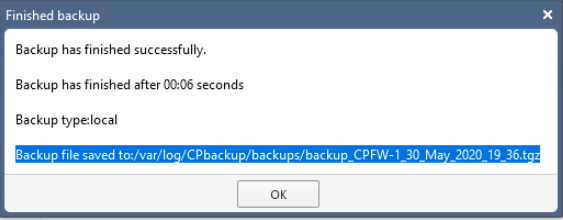
New backup file created

You can find location of backup file

You can export locally save file to your connected PC.

Click on export TAB

Click on ok.

It will download the .tgz file on connected PC.

You can always check last backup status by clicking on View last backups tab

To restore the backup:

You can Import configuration file to firewall using import tab and click on restore to restore previous configuration to firewall. Firewall will reboot with new configuration.

Click on import tab

Select .tgz format file to restore the configuration. Click on import and it will import file to local firewall.

Now you restore previous configuration using this backup file.

Select backup file which need to be backup

Click on restore (firewall reboot automatically)

Note: you can also restore backup from remote server. However, I recommend to restore configuration using local file to avoid any issue.

Backing Up and Restoring – in Clish

To create a backup from CLI

Use one of the following commands, depending on the backup type:

  • To save a backup locally:
    • add backup local
  • To save a backup on a remote server using FTP:
    • add backup ftp ip VALUE path /some/path/ username VALUE password plain
  • To save a backup on a remote server using TFTP:
    • add backup tftp ip VALUE
  • To save a backup on a remote server using SCP:
    • add backup scp ip VALUE path /some/path/ username VALUE password plain

Command Parameters:

  • ip VALUE – The IP address of the remote server.
  • username VALUE – User name required to log in to the remote server.
  • password plain – At the prompt, enter the password for the remote server.
  • /some/path/ – Path to stored backup on FTP server

Example:

To check backup files

To create new backup file

Select local option

Backup process successful

To show current backup files

Notes:

  • Backup configurations on Check Point appliances are stored in /var/log/CPbackup/backups/
  • Backup configurations on Open Servers are stored in /var/CPbackup/backups/

To restore configuration from CLI

Steps Required:

  1. Run the appropriate restore command (see Commands below).
  2. Monitor progress
  3. Once operation is done reboot the machine.
  4. Install policy.

Commands:

Use one of the following commands, depending on the backup type.

  • To restore a local backup:
    • set backup restore local <TAB>
  • To restore a backup from a remote server using FTP:
    • set backup restore ftp ip VALUE path /some/path file VALUE username VALUE password plain
  • To restore a backup from a remote server using TFTP:
    • set backup restore tftp ip VALUE file VALUE
  • To restore a backup from a remote server using SCP:
    • set backup restore scp ip VALUE path /some/path file VALUE username VALUE password plain

Command Parameters:

  • local <TAB> – The <TAB> does an auto-complete on the name and location of the backup file.
  • ip VALUE – The IP address of the remote server.
  • username VALUE – User name required to log in to the remote server.
  • password plain – At the prompt, enter the password for the remote server.
  • /some/path – Path to stored backup.

Example:

To check available backup files

To restore backup file

It will automatically restart the firewall after restoration of configuration.

Important: Once restore is done, you must reboot and install policy in order to apply the new configuration.

Configuring Scheduled Backups – Gaia Portal

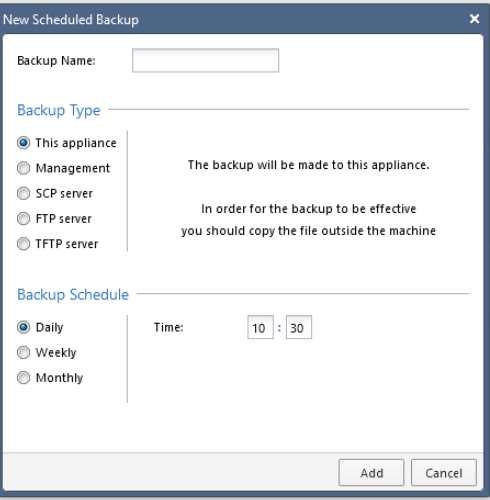
To add a scheduled backup from WEB GUI

Click on add scheduled backup

Enter backup name

You can schedule backup on Daily, Weekly and Yearly basis

I have created daily backup locally as below

It will automatically trigger the back on set time daily.

Configuring Scheduled Backups – in Clish

To add a backup using CLI

  1. Use one of the following commands to create the backup task, depending on the backup type:
    • To add a scheduled backup locally:
      • add backup-scheduled name VALUE local
    • To add a scheduled backup on a remote server using FTP:
      • add backup-scheduled name VALUE ftp ip VALUE path /some/path/ username VALUE password plain
    • To add a scheduled backup on a remote server using SCP:
      • add backup-scheduled name VALUE scp ip VALUE path /some/path/ username VALUE password plain
    • To add a scheduled backup on a remote server using TFTP:
      • add backup-scheduled name VALUE tftp ip VALUE
  1. Next, use one of the following commands to schedule the backup task:
    • To configure a daily backup schedule:
      • set backup-scheduled name VALUE recurrence daily time VALUE
    • To configure a monthly backup schedule:
      • set backup-scheduled name VALUE recurrence monthly month VALUE days VALUE time VALUE
    • To configure a weekly backup schedule:
      • set backup-scheduled name VALUE recurrence weekly days VALUE time VALUE

Example:

To check scheduled backup

Advertisements