Wednesday, May 30, 2018

TCP packets dropped due to “out of state” error

TCP packets dropped due to “out of state” error

Description:

Some TCP packets, and therefore connections, are being dropped due to an invalid state. In the firewall logs these appear as “TCP packet out of state”. The list of affected connections is below. The firewall keeps a state table that is used to ensure TCP connections are tracked from beginning (SYN) to end. It is possible for a connection that used to appear in that table to no longer appear in it.
Indeni will re-check this alert every 1 minute. If indeni will determine the issue has been resolved it will automatically be flagged as such.
Affected TCP Connections:
  • src: 192.168.10.14 dst: 10.3.1.81, service: (TCP 22)
  • src: 192.168.10.10 dst: 10.3.1.81, service: (TCP 5000)
  • src: 10.3.1.81 dst: 10.3.1.75, service: (TCP 41983)
  • src: 192.168.10.10 dst: 10.3.1.81, service: (TCP 443)
  • src: 192.168.10.10 dst: 10.3.1.81, service: (TCP 22)
  • src: 10.3.1.81 dst: 10.3.1.75, service: (TCP 36931)
  • src: 10.3.1.81 dst: 10.3.1.75, service: (TCP 33356)
Manual Remediation Steps:
There are multiple known causes:
  • Asymmetric routing: one direction of the connection is flowing through this firewall and another through a different firewall (not part of the same cluster).
  • The connection does not comply with the TCP standard or an attack is being attempted.
  • The connection was inactive for more than the TCP idle connection timeout (default 3600 seconds for Check Point firewalls). To resolve this, you may increase the TCP connection timeout. A better solution, however, would be to contact the developers of the application using the connection and have them implement a keep-alive in the connection to avoid a timeout. This latter option will ensure the application is in better compliance with complex network equipment and would help avoid increasing the TCP connection timeout which may result in the connection table filling up. Aggressive aging is removing TCP connections.

fw monitor

If you want to check the traffic flowing through a Checkpoint firewall without using the SmartView Tracker, you can use “fw monitor” command.
I will show you how to use fw monitor the way I use it for my troubleshooting process.
Take into consideration the following:
1. If you have a cluster, this command will show traffic flowing through the active firewall.
a. To check active status issue: cphaprob state
2. If you have SecureXL enabled, some commands may not show everything.
a. To disable SecureXL: fwaccel off
b. To enable SecureXL: fwaccel on

Traffic to/from a Host

You can check the traffic that a host is receiving or sending with the following command:
fw monitor -e “accept host(x.x.x.x);”
Example
CP-Firewall> fw monitor -e "accept host(192.168.1.86);"
Compiled OK.
monitor: loading
monitor: monitoring (control-C to stop)
[vs_0][fw_6] eth3:i[71]: 173.16.25.44 -> 192.168.1.86 (TCP) len=71 id=0
TCP: 43637 -> 443 F..PA. seq=4a5c5909 ack=df3170c0
[vs_0][fw_6] eth3:I[71]: 173.16.25.44 -> 192.168.1.86 (TCP) len=71 id=0
TCP: 43637 -> 443 F..PA. seq=4a5c5909 ack=df3170c0
[vs_0][fw_6] eth1:o[41]: 173.16.25.44 -> 192.168.1.86 (TCP) len=41 id=0
TCP: 43637 -> 443 F...A. seq=4a5c5927 ack=df3170c0
[vs_0][fw_6] eth1:O[41]: 173.16.25.44 -> 192.168.1.86 (TCP) len=41 id=0
TCP: 43637 -> 443 F...A. seq=4a5c5927 ack=df3170c0
monitor: caught sig 2
monitor: unloading
CP-Firewall>

In this example, you can see the ingress interface (eth3) and the egress interface (eth1). Also, you can see the 4 capture points (iIoO):
pre-inboundi (lowercase i)
post-inboundI (uppercase i)
pre-outboundo (lowercase o)
post-outboundO (uppercase o)

You can also use set the capture points:
CP-Firewall> fw monitor -e "accept host(192.168.1.86);" -m iO
 Compiled OK.
 monitor: loading
 monitor: monitoring (control-C to stop)
 [vs_0][fw_6] eth3:i[64]: 173.16.25.44 -> 192.168.1.86 (TCP) len=64 id=0
 TCP: 3932 -> 443 .S.... seq=ccbcc90f ack=00000000
 [vs_0][fw_6] eth1:O[64]: 173.16.25.44 -> 192.168.1.86 (TCP) len=64 id=0
 TCP: 3932 -> 443 .S.... seq=ccbcc90f ack=00000000

Traffic to/from a Network

You can check the traffic to a network with the following command. You can use 32 as netmask and would work like a host as well.
fw monitor -e "accept net(x.x.x.x,yy); "

Example (network 192.168.1.64/26)
CP-Firewall> fw monitor -e "accept net(192.168.1.64,26); "
 Compiled OK.
 monitor: loading
 monitor: monitoring (control-C to stop)
 [vs_0][fw_11] eth2:i[44]: 172.16.10.149 -> 192.168.1.89 (TCP) len=44 id=36544
 TCP: 7480 -> 443 .S.... seq=25d68d6c ack=00000000
 [vs_0][fw_11] eth2:I[44]: 172.16.10.149 -> 192.168.1.89 (TCP) len=44 id=36544
 TCP: 7480 -> 443 .S.... seq=25d68d6c ack=00000000
 [vs_0][fw_11] eth1:o[44]: 172.16.10.149 -> 192.168.1.89 (TCP) len=44 id=36544
 TCP: 7480 -> 443 .S.... seq=25d68d6c ack=00000000
 [vs_0][fw_11] eth1:O[44]: 172.16.10.149 -> 192.168.1.89 (TCP) len=44 id=36544
 TCP: 7480 -> 443 .S.... seq=25d68d6c ack=00000000

To see a one-way network flow:

You can check the traffic to a source and destination in one direction:
fw monitor -e “accept (src=x.x.x.x and dst=x.x.x.x); ”
Example (from 173.16.25.44 to 192.168.2.134)
CP-Firewall> fw monitor -e "accept (src=173.16.25.44 and dst=192.168.2.134); "
 monitorfilter:
 Compiled OK.
 monitor: loading
 monitor: monitoring (control-C to stop)
 [vs_0][fw_0] eth3:i[64]: 173.16.25.44 -> 192.168.2.134 (TCP) len=64 id=0
 TCP: 31668 -> 443 .S.... seq=334241eb ack=00000000
 [vs_0][fw_0] eth3:i[64]: 173.16.25.44 -> 192.168.2.134 (TCP) len=64 id=0
 TCP: 10589 -> 443 .S.... seq=96f7c1ab ack=00000000
 [vs_0][fw_0] eth3:i[64]: 173.16.25.44 -> 192.168.2.134 (TCP) len=64 id=0
 TCP: 59589 -> 443 .S.... seq=b00da993 ack=00000000
 [vs_0][fw_0] eth3:i[64]: 173.16.25.44 -> 192.168.2.134 (TCP) len=64 id=0
 TCP: 24452 -> 443 .S.... seq=b7eab2df ack=00000000
 [vs_0][fw_0] eth3:i[71]: 173.16.25.44 -> 192.168.2.134 (TCP) len=71 id=0
 TCP: 24452 -> 443 F..PA. seq=b7eac473 ack=aaeba7f0
 [vs_0][fw_0] eth3:i[71]: 173.16.25.44 -> 192.168.2.134 (TCP) len=71 id=0
 TCP: 31668 -> 443 F..PA. seq=33425c0a ack=39f1e2fa
 [vs_0][fw_0] eth3:i[71]: 173.16.25.44 -> 192.168.2.134 (TCP) len=71 id=0
 TCP: 59589 -> 443 F..PA. seq=b00db2f8 ack=5c949cea
 [vs_0][fw_0] eth3:i[71]: 173.16.25.44 -> 192.168.2.134 (TCP) len=71 id=0
 TCP: 10589 -> 443 F..PA. seq=96f7c6d9 ack=9c027709
 monitor: caught sig 2
 monitor: unloading
 CP-Firewall>

To see a 2-way network flow:

You can check the traffic to a source and destination in both directions:
fw monitor -e "accept (src=x.x.x.x and dst=x.x.x.x) or (src=x.x.x.x and dst=x.x.x.x);"

Example (from/to 172.16.125.81 to 192.168.1.84)
CP-Firewall> fw monitor -e "accept (src=172.16.125.81 and dst=192.168.1.84) or (src=192.168.1.84 and dst=172.16.125.81);"
 monitorfilter:
 Compiled OK.
 monitor: loading
 monitor: monitoring (control-C to stop)
 [vs_0][fw_17] bond1.102:i[84]: 192.168.1.84 -> 172.16.125.81 (ICMP) len=84 id=52498
 ICMP: type=8 code=0 echo request id=22608 seq=1
 [vs_0][fw_17] bond1.102:I[84]: 192.168.1.84 -> 172.16.125.81 (ICMP) len=84 id=52498
 ICMP: type=8 code=0 echo request id=22608 seq=1
 [vs_0][fw_17] bond1.101:o[84]: 192.168.1.84 -> 172.16.125.81 (ICMP) len=84 id=52498
 ICMP: type=8 code=0 echo request id=22608 seq=1
 [vs_0][fw_17] bond1.101:O[84]: 192.168.1.84 -> 172.16.125.81 (ICMP) len=84 id=52498
 ICMP: type=8 code=0 echo request id=22608 seq=1
 [vs_0][fw_4] bond1.101:i[84]: 172.16.125.81 -> 192.168.1.84 (ICMP) len=84 id=24621
 ICMP: type=8 code=0 echo request id=13742 seq=30840
 [vs_0][fw_4] bond1.101:I[84]: 172.16.125.81 -> 192.168.1.84 (ICMP) len=84 id=24621
 ICMP: type=8 code=0 echo request id=13742 seq=30840
 [vs_0][fw_4] bond1.102:o[84]: 172.16.125.81 -> 192.168.1.84 (ICMP) len=84 id=24621
 ICMP: type=8 code=0 echo request id=13742 seq=30840
 [vs_0][fw_4] bond1.102:O[84]: 172.16.125.81 -> 192.168.1.84 (ICMP) len=84 id=24621
 monitor: caught sig 2
 monitor: unloading
 CP-Firewall>

As you can see, this is a very helpful and flexible command, you can combine the OR and AND operators as you need and capture the information into a .pcap file and analyze it later with Wireshark.

Tuesday, May 15, 2018

R80.10 Training


Upgrade Methodology
--------------------------------
Upgrade Blink  (isomorphic)  Image Gateway
Cpuse – upgrade
            - clean install
CDT – Central Deployment Tool (hotfix/upgrade
Smart upgrade


Smart distributor = smart update

Can dlp or dlp light scan ocr and pdf 
Smart logger - Boelian numbers, free from text CMA
        Smart workflow  - monitor logs summary /details/logs/history
         Service Now – API to integrate  - CB has a video
•Shared layer to all the gateway (gateway and management must be on R80.10)
•Do allow spaces in Object Name in R80.10
•
•
Corp Policy
    Policy Type (Access Control/Threat Prevention)
•Access Control 
•Network
•Web access Layer
•Threat Prevention
•Threat Prevention
•IPS only
<Manage & setting>  <Permission and Administrator>/Revision -  (similar to database revision)

Loggin  - Enable  Accounting  extended and detail session /payload
What are layers
•Unified policy
•2 components
•access control – Firewall , vpn Url filtering, appl control, control awareness
•threat prevention – threat emulation,
•Layers in  inline mode
•Layers in ordered mode
•
•Benefits
•Admin delegation for specific order layers
•Could have combination of blades per layer
Compatible with R77.20 gateways


Thursday, May 10, 2018

Understanding VSX -


Key Terms
  • VSX Gateway 
    • Physical appliance that hosts virtual firewall gateway
  • Virtual System
    • is a virtual firewall that provides the functionality of a security gateway with full firewall and vpn facilities. 
    • you can have multiple virtual system running concurrently on a single VSX gateway 
  • Wrap Link 
    • is a virtual point to point connection between a virtual system and a virtual router or virtual switch. 
    • each side of the warp link represents a virtual interface of the appropriate device
  • Virtual Router
    • A software equlivent of a physical router
  • Virtual Switch 
    • A software equlivent of a physical switch
  • VSLS 
    • Virtual System Load Sharing is a VSX cluster technology that assigns virtual system traffic to different active cluster members. 

  • DMI - Dedicate Management Interface 

Thursday, April 12, 2018

fun commands

commands

View connections sorted by rule.
[Expert@myvpn-fwb:0]#
fw tab -u -t connections -f | awk -F ';' '{print $16,"\t", $8,"\t", $10,"\t",  $11,"\t", $12}' |grep Rule | sort -ng


Interface Status of phisical interfaces (speed,duplex,driver type) in one line:
[Expert@myvpn-fwa:0]#
ifconfig -a | grep encap | awk '{print $1}' | grep -v lo | grep -v bond | grep -v ":" | grep -v ^lo | xargs -I % sh -c 'ethtool %; ethtool -i %' | grep '^driver\|Speed\|Duplex\|Setting' | sed "s/^/ /g" | tr -d "\t" | tr -d "\n" | sed "s/Settings for/\nSettings for/g" | awk '{print $5 " "$7 "\t " $9 "\t" $3}' | grep -v "Unknown" | grep -v "\."


1000Mb/s Full    e1000e Sync:
10000Mb/s Full   ixgbe  eth1-01:
10000Mb/s Full   ixgbe  eth1-04:
[Expert@myvpn-fwa:0]#


[Expert@myvpn-fwa:0]# clish -c "show routed cluster-state detailed"
CLINFR0771  Config lock is owned by admin. Use the command 'lock database override' to acquire the lock.

Cluster:                  Clustered
Master/Slave:             Slave
Master IP:                NO_MASTER_ADDRESS
Sync IP:                  192.168.10.1
Cluster Sync:             In_Progress
Last Sent:                NO_MESSAGE_SENT
Last Received:            NO_MESSAGE_RECEIVED

Cluster VIPs
Interface                 IPv4 Address      Global IPv6 Address 
eth1-01                   100.25.13.132     None 
eth1-04                   216.31.3.36     None 

Current time:           
Apr 12 12:45:44         

Cluster State Change History
Timestamp                 State Change Type
Feb  5 14:44:41           Master to Slave
Jan 22 15:42:54           Slave to Master

Cluster State SIGQUIT History
Timestamp                 SIGQUIT Change Type
Apr 11 13:25:10           Slave to Slave
Apr 11 13:25:05           Slave to Slave
Apr 11 13:25:04           Slave to Slave
Apr 11 13:00:43           Slave to Slave
Apr 11 13:00:38           Slave to Slave
Apr 11 13:00:37           Slave to Slave
Feb 23 14:46:52           Slave to Slave
Feb 23 14:46:47           Slave to Slave
Feb 23 14:37:43           Slave to Slave
Feb 23 14:37:38           Slave to Slave

Cluster Routed Pnote Change History
Timestamp                 Pnote State       Event Description 
Jan 22 15:40:21           PNOTE_OK          DR Isn't Configured 

Cluster Routed Pnote History
Timestamp                 Pnote State       Event Description 
Feb  5 14:21:14           PNOTE_OK          Master: Sigquit Received 
Jan 25 11:12:09           PNOTE_OK          Master: Sigquit Received 
Jan 25 11:12:03           PNOTE_OK          Master: Sigquit Received 
Jan 22 15:49:50           PNOTE_OK          Master: Sigquit Received 
Jan 22 15:48:08           PNOTE_OK          DR Isn't Configured 
Jan 22 15:47:03           PNOTE_OK          DR Isn't Configured 
Jan 22 15:45:56           PNOTE_OK          DR Isn't Configured 
Jan 22 15:45:45           PNOTE_OK          DR Isn't Configured 

[Expert@myvpn-fwa:0]#

Install Policy

# mgmt_cli install-policy


Show unused objects:

# mgmt_cli show unused-objects offset 0 limit 50 details-level "standard" --format json


R80.10+ debug VPN

# iketool


Shows Cluster information

> show routed cluster-state detailed

Monday, April 9, 2018

Threat Prevention tab


Normally, there is no need for tuning the cache.
To change the relevant settings:
A.      Go to Threat Prevention tab.
B.      In the left tree, expand the Advanced - click on Engine Settings.
C.      Scroll to the bottom - in the Threat Emulation Settings section, click on the Configure settings... button.
D.      Set the desired limits:
o   Maximum file size for emulation - Files that are larger than this value are not sent for emulation (because large files can reduce network performance)
o   Maximum emulation time - The maximal time that Threat Emulation does analysis on a file (used only for a Local Emulation)
o   Maximum file time in queue - The maximal time that a file waits for Threat Emulation analysis
o   Number of file hashes to save in local cache - Number of file hashes that are stored in the Threat Emulation local cache

E.      Click on OK.
F.      Install the Threat Prevention policy.


Wednesday, March 21, 2018

How to set up a Site-to-Site VPN with a 3rd-party remote gateway

Introduction
This document describes how to set up a VPN connection between a Check Point gateway and a 3rd party Interoperable Device.
There are 3 main sections:
  1. New VPN Check Point Gateway configuration.
  2. Interoperable Device and VPN community configuration.
  3. Required Firewall Rule Base definition.

Table of Contents
  • Configuring Check Point Security Gateway with VPN
  • Configuring the Interoperable Device and VPN community
  • Defining VPN encryption domain for Interoperable Device
  • Creating a rule for the traffic
  • Completing the procedure
  • Troubleshooting
  • Related solutions and documentation

Configuring Check Point Security Gateway with VPN

Note: If you have a fresh installed Check Point Gateway that is also defined as Security Management server and should be used as a VPN Gateway, start from step 6.
In most cases this Gateway has the  icon and is named "gw-<number>".

To create Check Point Security Gateway:
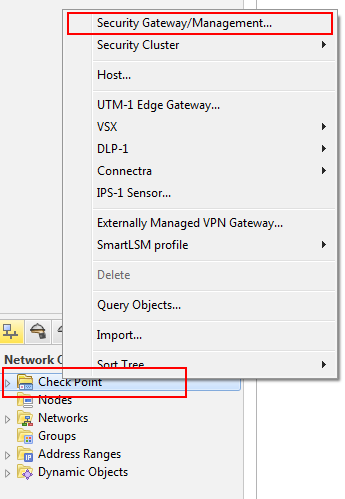
  1. In the Network Object right-click on Check Point and Security Gateway/Management.


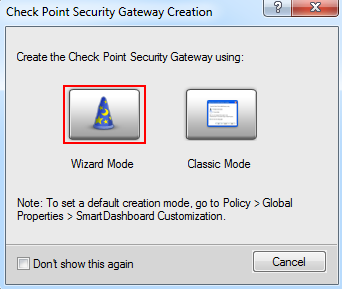
  2. Click Wizard Mode


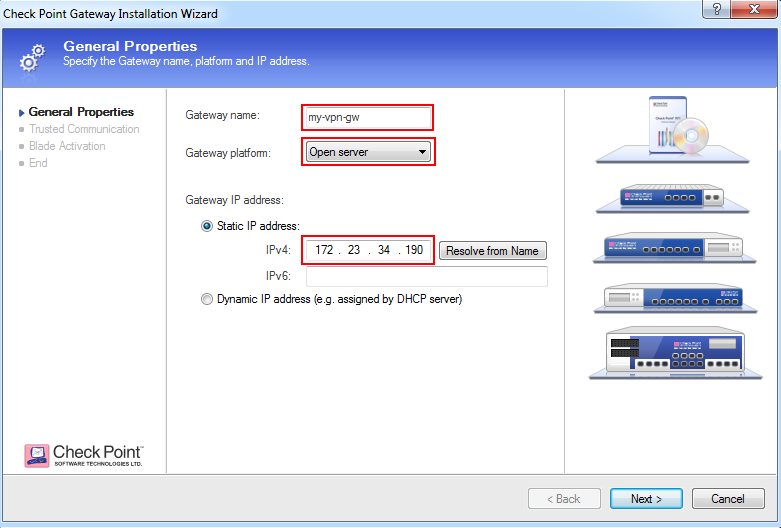
  3. Enter
    1. Gateway name
    2. Gateway platform
    3. IPv4 address


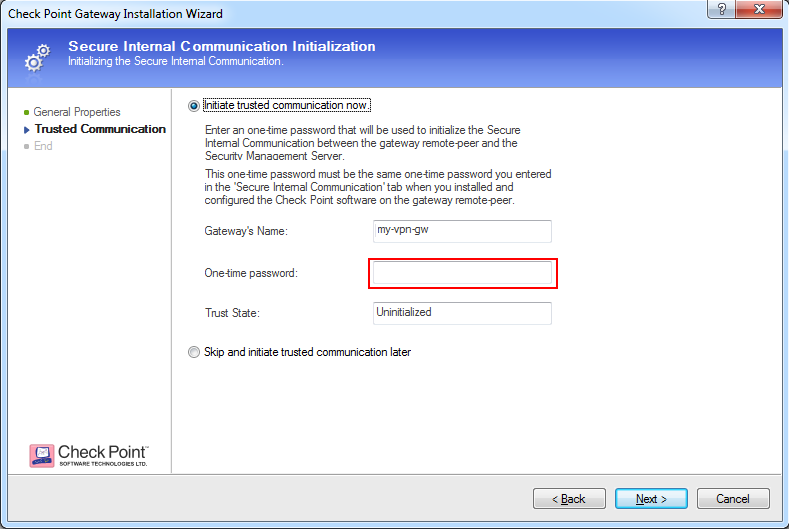
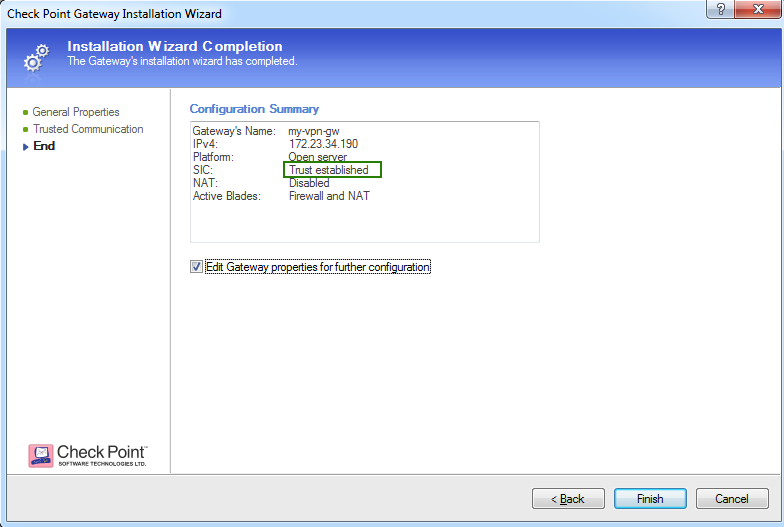
  4. Click Next and enter the one-time password as defined on Check Point Security Gateway during installation.


  5. Click Next after trusted communication established, then click Finish.


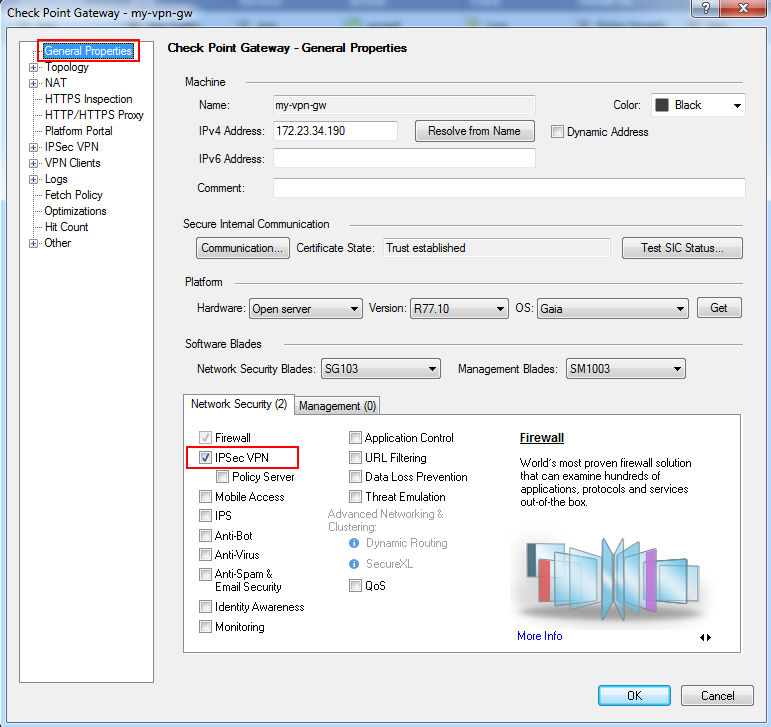
  6. In the General Properties window of your Security Gateway, make sure the 'IPSec VPN' checkbox is selected.


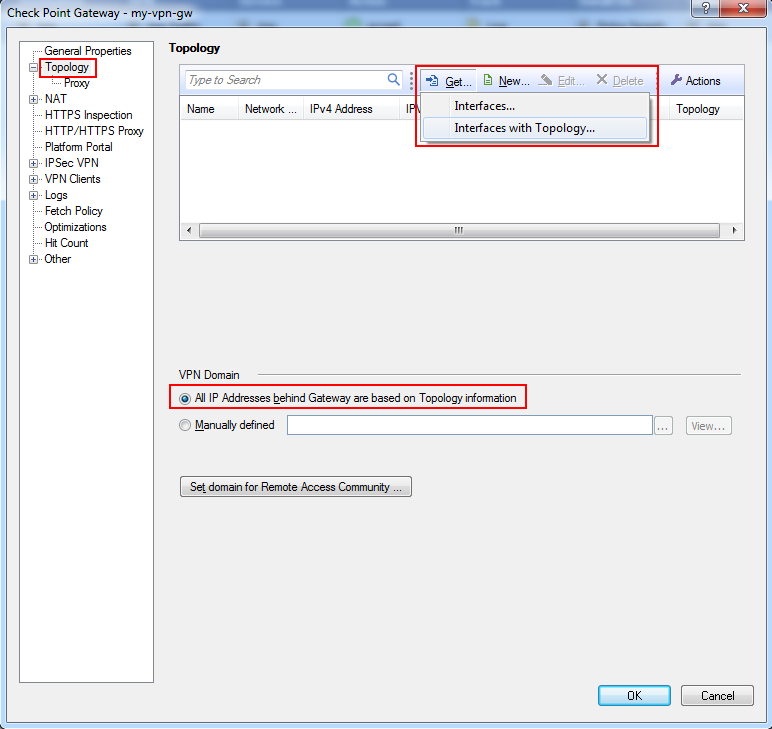
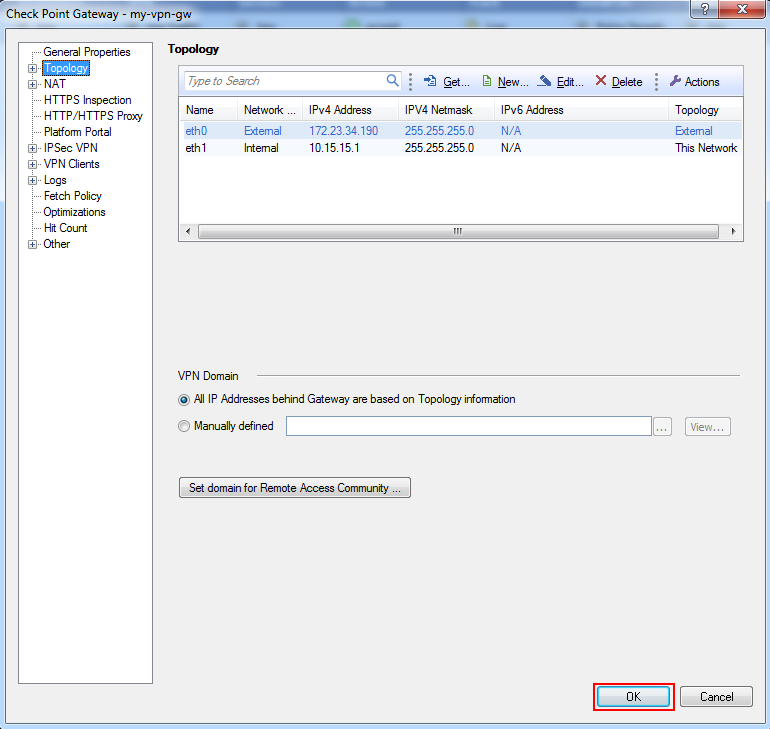
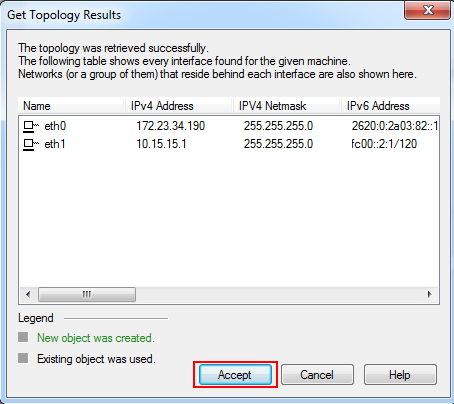
  7. Define VPN encryption domain for your Gateway. Make sure that you have at least one internal and one external interfaces. VPN encryption domain will be defined to all networks behind internal interface.


  8. Click Accept


  9. Click OK and close the Gateway dialog


Configuring the Interoperable Device and VPN community

Create an object to represent the peer gateway.
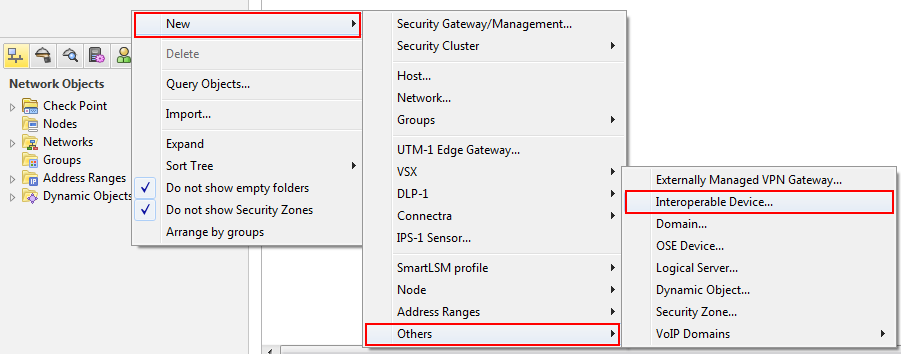
  1. Right-click the white space of Network Objects and select: New -> Others -> Interoperable Device


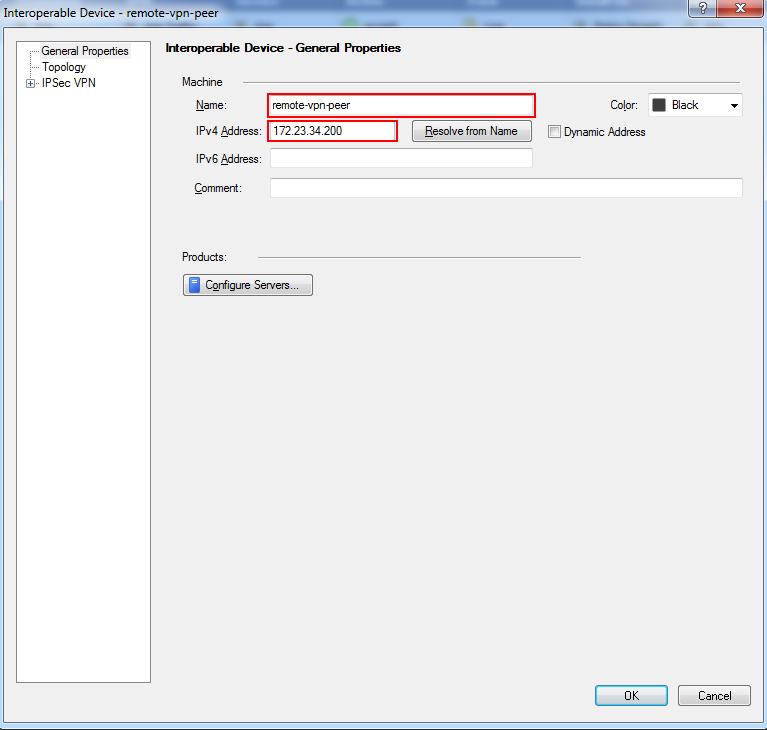
  2. Give the gateway a name, IP address, and (optional) description in the properties dialog window that is displayed and click OK.


  3. In the SmartDashboard IPSec VPN tab, right-click in the open area on the top panel and select: New -> Meshed Community.


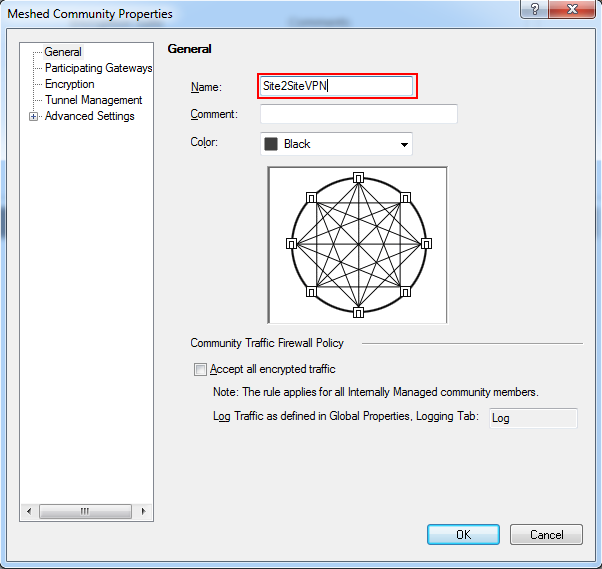
  4. A Meshed Community Properties dialog pops up.
    In the General menu, enter your VPN community name:


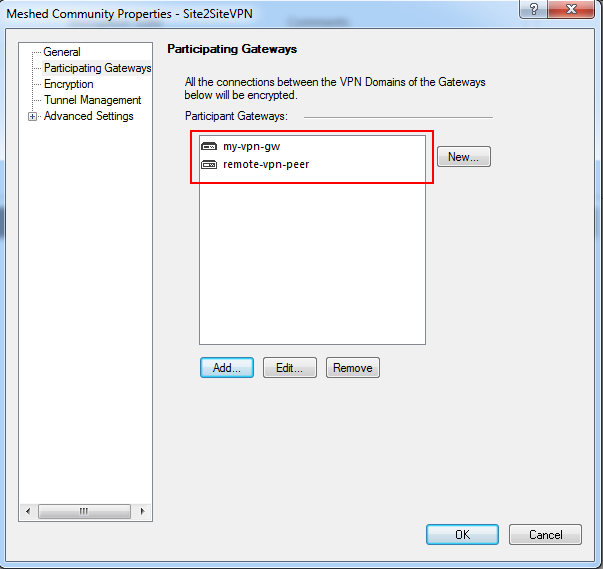
  5. In the Participating Gateways menu click: Add, select your both gateways objects, and click OK.


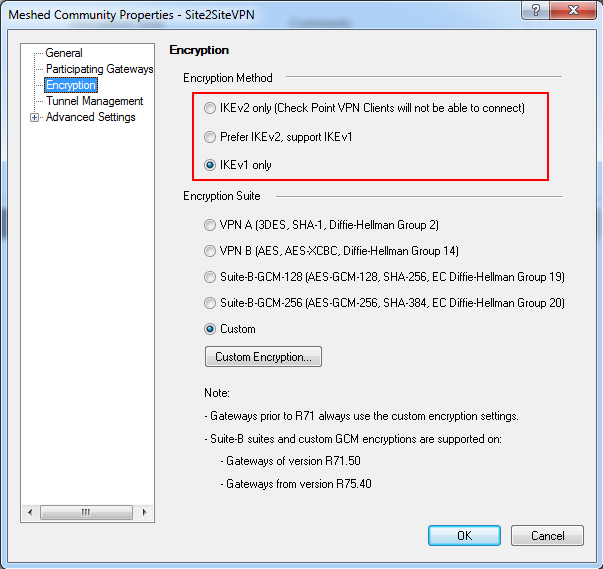
  6. In the Encryption menu, you can change the Phase 1 and Phase 2 properties.
    You can also define which IKE version should be used. For IKEv1 leave the default, for IKEv2 select IKEv2 only.

    Note: Make a note of the values you select in order to set the peer to match them.


  7. In the Tunnel Management menu you can define how to setup the tunnel.Note: The recommended tunnel sharing method is one VPN tunnel per subnet pair (default).
    This shares your network on either side of the VPN and makes the Phase 2 negotiation smooth. It also requires fewer tunnels to be built for the VPN.
    If you need to restrict access over the VPN, you can do that later through your security Rule Base.
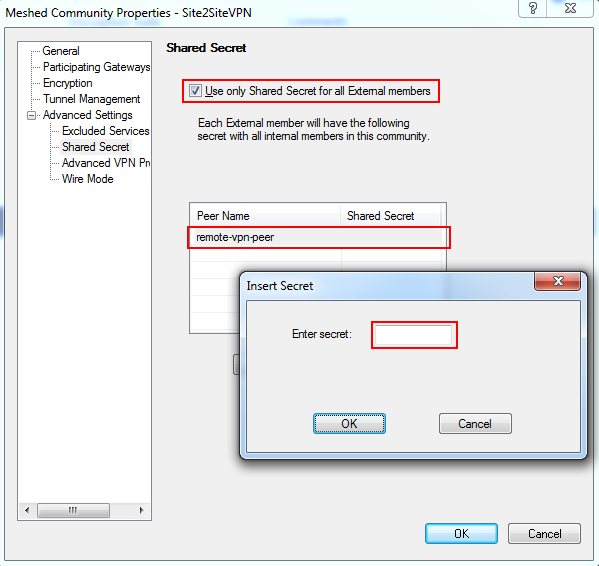
  8. For preshered authentication, expand the Advanced Settings menu and select: Shared Secret.
    Select the 'Use only Shared Secret for all External members' checkbox.
    Select your peer gateway from the entries in the list below and click Edit to edit the shared secret.Note: remember this secret, as your peer will need it to set up the VPN on the other end.


  9. Expand the Advanced Settings menu and select: Advanced VPN Properties. Here, you can modify the more advanced settings regarding Phase 1 and 2.Note: Keep note of the values used. It is also a good idea to select:
    Disable NAT inside the VPN community so you can access resources behind your peer gateway using their real IP addresses, and vice versa.
  10. Click OK on the VPN community properties dialog to exit back to the SmartDashboard.
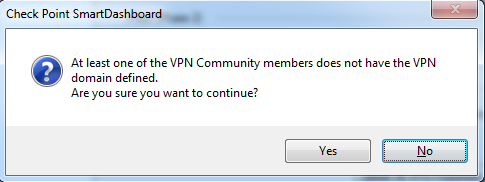
    You may see the following message:


  11. We are about to address the VPN domain setup in the next section, so click Yes to continue.
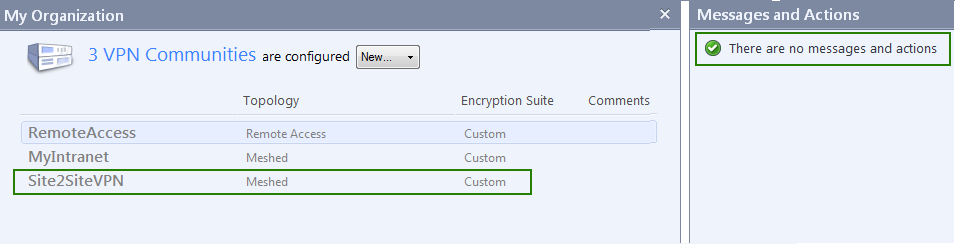
    Now you can see your VPN community defined:


Defining VPN encryption domain for Interoperable Device

You now need to define your VPN encryption domains.
If you have not already done so, create network objects to represent your local networks and the peer networks they will be sharing with you.

To define VPN encryption domains:
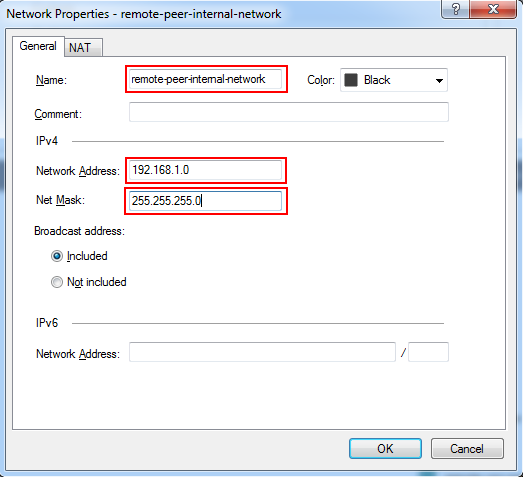
  1. From the Network Objects menu, right click on Networks and select Network to define a new network. In the following image, we are creating a network to represent our peer's internal network that they will be sharing with Check Point VPN gateway:


  2. If you or your peer is sharing more than one network over the tunnel, create groups to represent each side's VPN domain. From the Network Objects menu, right click on Groups, select Groups and then Simple Group...In this example, only one network is shared, so the group will have only one object included, but you can put as many networks in this group as you want to share.

    Note: it is important not to add groups within a group as this can impact performance. Make sure the group is "flat".

    Give your group a meaningful name such as: Local_VPN_Domain.
    Click OK once you have added all of your local networks and then repeat the procedure to create a group to represent your peer's shared networks.
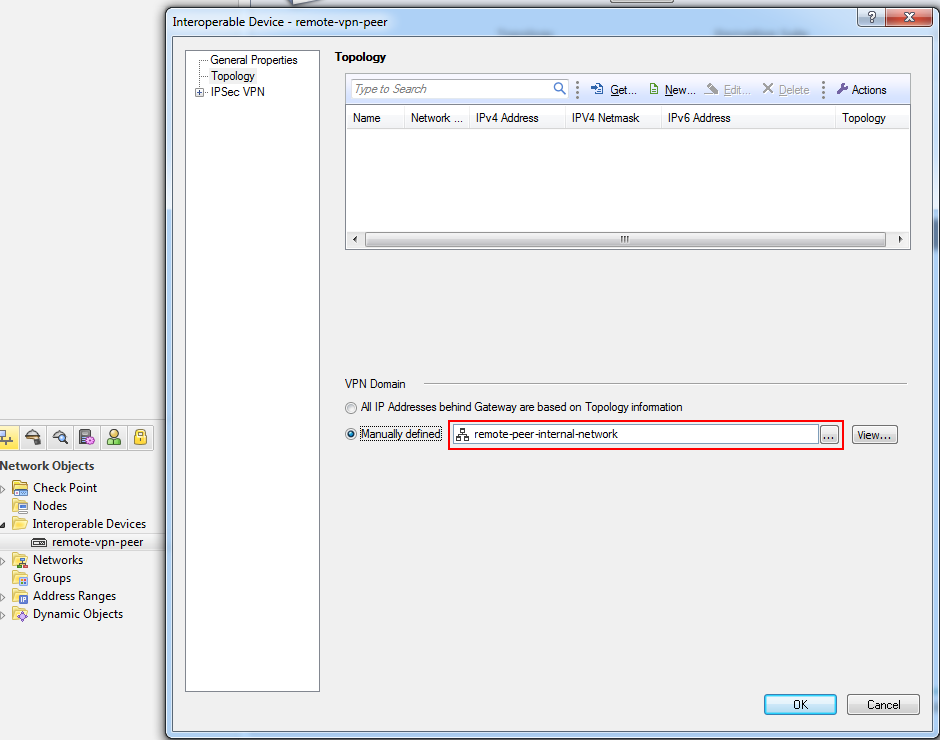
  3. Open the properties for the peer gateway and select the group/network that represents its VPN domain:


  4. Click OK to complete the peer gateway configuration.

Creating a rule for the traffic

Now, you have both objects set up for VPN and you have defined your community. All that is left is to create a rule for the traffic.
Here is where you should restrict access if it is required.
To create a rule for the traffic:
  1. To allow VPN traffic, you should add the relevant rules to your Firewall Rule Base.
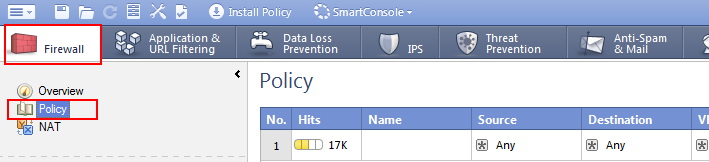
    Navigate Rule Base, Firewall -> Policy


  2. Decide where in your rule base you need to add your VPN access rule and right click the number on the rule just above where you want it and select: Add Rule -> Below.
  3. You should explicitly set the VPN community in the VPN column on your rule, you have created before.
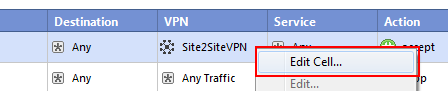
    In the VPN column, right-click the Any Traffic icon and select: Edit Cell....


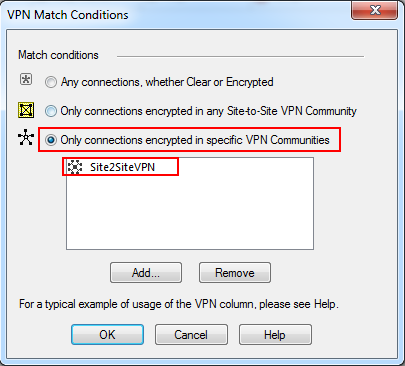
    Select the: Only connections encrypted in specific VPN Communities option button and click Add.
    Select the VPN community created in the above steps and click OK and then OK again.


  4. In this example, we are allowing any service/any host across the tunnel in both directions. Your rule should now show the VPN community in the VPN column:


Completing the procedure

  1. Install the policy to your local Check Point gateway.
  2. Once the remote side has setup their VPN to match, verify that you have secure communication with their site.


Troubleshooting

  1. Problem: Traffic is dropped by 3rd party gateway and main IP configuration was defined to internal IP address for Check Point Gateway.

    Generally, it is recommended to define main gateway IP address with external IP (in Check Point Gateway – General Properties). In some cases, for example: StandAlone gateway, administrator wants to define main IP address as internal IP in order to allow managing from internal network.

    In this case, VPN link selection should be changed.
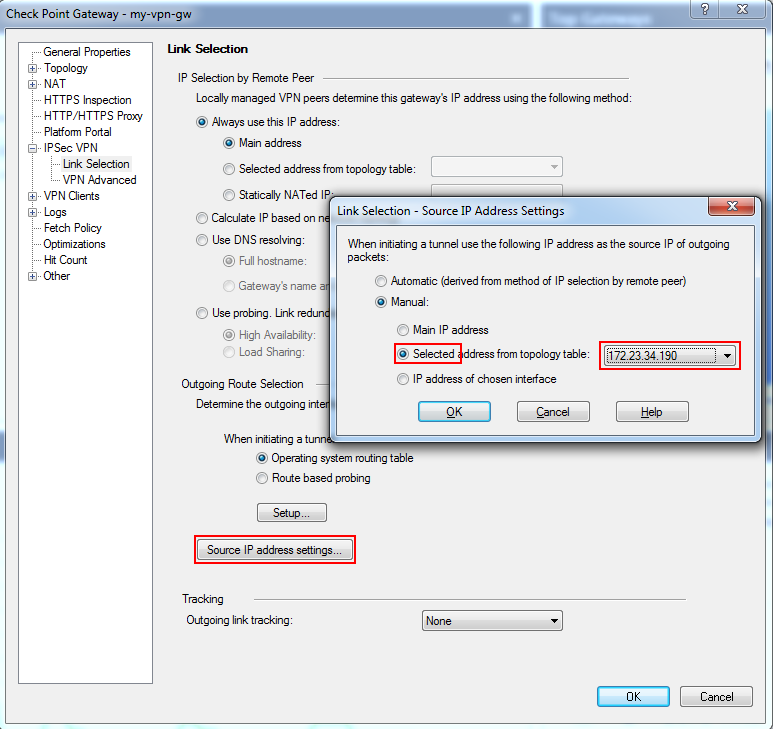
    Open Check Point gateway properties dialog, select IPSec VPN -> Link Selection and click Source IP address settings...
    In opened dialog, select Selected address from topology table and select relevant external IP address, used by remote peer


  2. Problem: IKE keys were created successfully, but there is no IPsec traffic (relevant for IKEv2 only).

    In some cases, remote peer chooses NAT-T encapsulation but Check Point gateway sends traffic without this encapsulation. As a result, a remote peer drops the IPsec traffic since it expecting NAT-T.

    There are two workarounds available to resolve this problem:
    1. If IKEv2 is required by remote peer, NAT-T should be disabled.

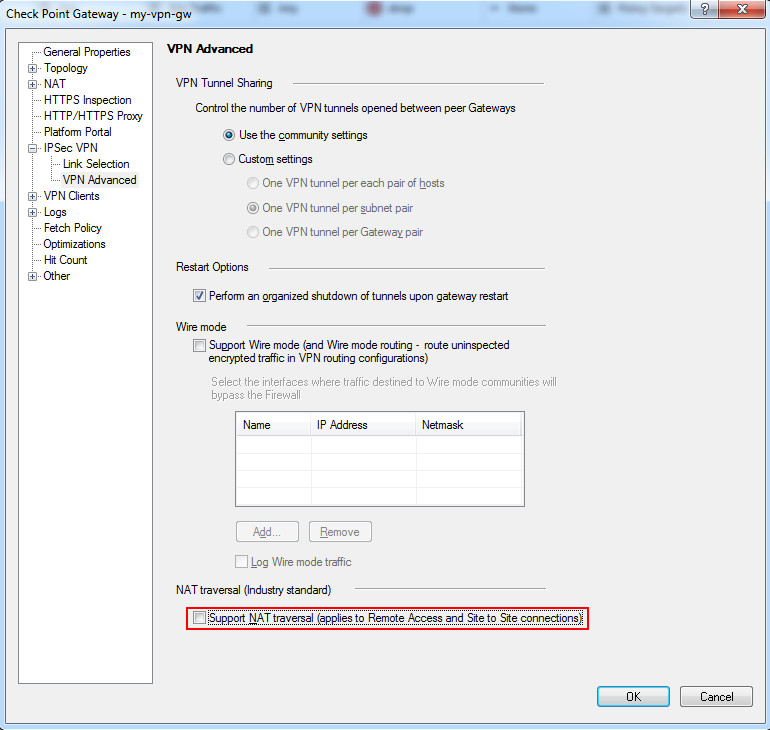
      To do so, open Check Point gateway properties dialog, select IPSec VPN -> VPN Advanced and clear 'Support NAT traversal (applies to Remote Access and Site to Site connections)' checkbox:


      Note: This solution is not suitable for gateways participating in the Remote Access community.
    2. If IKEv2 is not required, in the SmartDashboard, go to Community -> Encryption and change configuration to IKEv1.